
Why Is My WordPress Site Slow Arizona Quick Fixes, Compliance

If your WordPress site feels sluggish for Arizona visitors, you can fix most problems without guessing. Slow performance costs conversions, frustrates patients or clients, and can create compliance headaches for regulated organizations.
In this article we'll explain why is my wordpress site slow arizona, show the fast checks you should run, and give practical fixes that work for Phoenix-area healthcare, finance, and legal teams that need secure, compliant hosting.
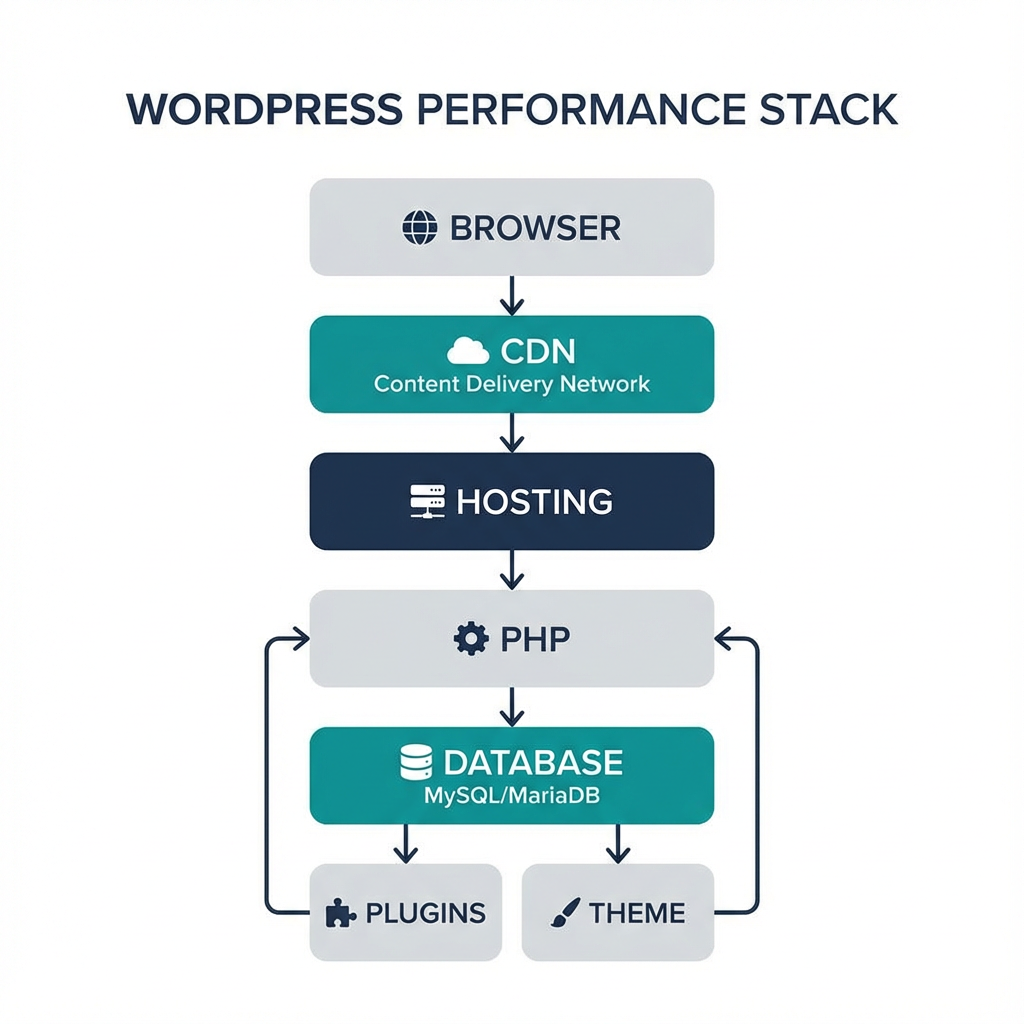
Quick summary
Many WordPress sites slow down because of a few common issues: underpowered hosting, unoptimized images and assets, heavy plugins or themes, outdated PHP or database overhead, and third-party scripts. For Arizona-based audiences, hosting location and low-latency networking matter too. This guide gives step-by-step diagnostics, short-term fixes, and long-term infrastructure options, including secure WordPress hosting and colocation in Arizona.
Why location matters for Arizona visitors
Latency affects perceived speed. If your hosting is on the opposite coast or overseas, every round trip adds delay for Arizona users. Local data centers lower time to first byte and improve page responsiveness for regional clients and offices.
If you need compliant, local options consider colocation or HIPAA-ready managed cloud solutions to keep data jurisdiction local and reduce latency while meeting compliance controls. See our HIPAA Compliant Managed Cloud Hosting and Colocation pages for regional options.
Common causes and quick diagnostics
1. Slow hosting or CPU throttling
Symptoms: slow Time To First Byte (TTFB), spikes during traffic bursts.
What to check: run a TTFB test with a tool like Google PageSpeed Insights or Lighthouse. If TTFB is high, your host or PHP workers are the likely bottleneck.
Fixes: upgrade to a managed plan, move to a provider with Arizona data centers, or use colocation to control hardware. Armour Cloud’s Colocation and Private Cloud Hosting give low-latency options.
2. Old PHP version and inefficient stack
Symptoms: long server processing times, slow admin screens.
What to check: confirm your PHP version in the hosting control panel. PHP 8.x gives major performance gains over 7.x.
Fixes: update to PHP 8.1 or newer after testing on staging, enable PHP-FPM, and use an opcode cache.
3. Heavy plugins and bloated themes
Symptoms: long load times on key pages, inconsistent behavior across pages.
What to check: use the Query Monitor plugin or run plugin performance profiling. Disable nonessential plugins one-by-one.
Fixes: replace slow plugins with lightweight alternatives, remove unused widgets and page builder bloat, and use a well-coded theme optimized for speed.
4. Unoptimized images and assets
Symptoms: large page size, slow first meaningful paint.
What to check: inspect the waterfall in GTmetrix or WebPageTest, look for large JPG/PNG files and render-blocking CSS/JS.
Fixes: serve WebP or AVIF where supported, compress and resize images, implement lazy loading, and combine or defer noncritical CSS/JS.
5. No caching or misconfigured caching
Symptoms: every page loads slowly even for repeat visitors.
What to check: see cache headers, test with and without query strings, and inspect object cache usage.
Fixes: enable full-page caching (Varnish, NGINX fastcgi_cache), use object caching (Redis or Memcached), and apply browser caching rules.
6. Database bloat and slow queries
Symptoms: slow admin actions, slow pages that run many queries.
What to check: search for high query counts and long-running queries, optimize wp_options and postmeta tables.
Fixes: clean transient options, optimize DB tables, use a managed database or tune MySQL settings, and consider offloading analytics to an external service.
7. Third-party scripts and external calls
Symptoms: single external script slows render (fonts, analytics, chat widgets).
What to check: network waterfall for long external requests.
Fixes: defer or lazy-load third-party scripts, self-host critical assets when licensing allows, and limit the number of external tags.
Short-term fixes you can apply today
- Run Google PageSpeed Insights and Lighthouse, note the top recommendations.
- Temporarily disable nonessential plugins and test load times.
- Install a caching plugin configured for your server type, or enable server-level caching.
- Compress and convert images to WebP, enable lazy loading.
- Update PHP to 8.x on a staging site and test.
- Move large files to a CDN for Arizona and national reach.
If you want a managed approach, Armour Cloud’s Secure WordPress Hosting provides hardened, monitored environments with performance tuning and compliance controls built in.

Long-term performance and compliance strategy
For regulated businesses, speed and compliance must go together. Here’s a recommended roadmap:
- Move to an Arizona-based, HIPAA-aware hosting environment for low latency and data residency. See HIPAA Compliant Managed Cloud Hosting.
- Implement continuous performance monitoring, including synthetic tests and RUM (real user monitoring).
- Use managed database services or tuned MySQL instances to avoid resource contention.
- Deploy a CDN and edge caching for static assets, while keeping PHI off public edges where required.
- Harden WordPress, schedule regular plugin audits, and implement role-based access and logging.
Armour Cloud’s Private Cloud Hosting and Managed Virtual Desktops help balance performance, security, and compliance for multi-location organizations.
Checklist: Fast troubleshooting steps
- Check TTFB and page load metrics.
- Confirm PHP 8.x and updated stack.
- Audit plugins and theme performance.
- Enable page caching and object caching.
- Optimize images and use a CDN.
- Tune database, clean transients, and archive old data.
- Monitor 24/7 with alerts for performance regressions.
Ready to test? Tools to run now
- Google PageSpeed Insights for actionable scoring and lab data. Google PageSpeed Insights
- Lighthouse in Chrome DevTools for audits.
- WebPageTest or GTmetrix for waterfall and network timing.
- Query Monitor plugin inside WordPress for slow queries.
Frequently asked questions
What is the single fastest way to speed up a WordPress site?
The fastest impact is improving hosting and enabling full-page caching. Moving to a faster server with local Arizona presence and proper cache configuration reduces TTFB and improves perceived speed quickly.
Is a CDN necessary if I host in Arizona?
Yes, a CDN helps nationwide and global visitors while reducing origin load, but for local Phoenix users a nearby data center plus edge caching gives the best combination of low latency and reliability.
Can plugins really make my site slow?
Yes, poorly coded plugins or many plugins can add database queries, render-blocking scripts, and heavy processing. Profiling and selective replacement typically yield large gains.
How does compliance affect performance choices?
Compliance requires controls around data residency, encryption, and logging. That sometimes limits use of public edge caching for sensitive data, but you can architect hybrid solutions that keep PHI in compliant private clouds while using CDNs for public assets.
Should I move to a managed host or fix existing hosting?
If your current provider limits CPU, has noisy neighbors, or does not support modern PHP and caching, moving to a managed, compliance-focused provider is often faster and more reliable. Armour Cloud can assess and recommend the least disruptive path.
How do I know if slow site performance affects revenue?
Use analytics to compare conversion rates and bounce rates for pages with slow load times. Even a one-second improvement can reduce abandonment for appointment bookings and forms.
Ready to fix your WordPress performance and stay compliant?
If you want local, secure, and compliant hosting that prioritizes performance for Arizona users, reach out for a consultation. Learn more about Secure WordPress Hosting or schedule a free assessment through our contact page.
Call (602) 529-3435 for secure hosting or compliance support, or request a consultation at https://armourcloud.io/contact/.
Conclusion
Performance problems usually trace back to a small number of root causes: hosting, PHP stack, plugins, and large assets. For Arizona organizations that must also meet HIPAA, SOC 2, or PCI requirements, pick a hosting partner that understands both speed and compliance. Start with the quick checks above, then move to a staged migration or optimization plan that preserves uptime and data controls. Armour Cloud provides local, managed options designed for regulated businesses that need low latency and proven compliance.
About Armour Cloud
Armour Cloud is a Phoenix-based provider of secure, compliant cloud hosting and managed IT solutions for regulated industries. Armour Cloud delivers high-performance infrastructure built on Arizona data centers, offering low-latency, HIPAA-compliant hosting with 24/7 support.
We specialize in helping healthcare, finance, and legal organizations protect sensitive data, meet compliance requirements, and modernize their IT with scalable, managed cloud environments.
Our Top Services:
- Colocation
- Managed Desktop-as-a-Service (VDI)
- Managed Microsoft 365 Services
- Email Security & Encryption
- Secure WordPress Hosting
- Private Cloud Hosting
- HIPAA Compliant Cloud Solutions
Ready to Secure Your Cloud?
📞 Call (602) 529-3435 or Contact Armour Cloud to get started with a free consultation.