Managed WordPress Security Checklist: Secure Hosting Best Practices

Keeping WordPress secure takes more than plugins and passwords, it requires a repeatable process that matches your compliance and uptime needs. Whether you host public-facing sites with sensitive patient or customer data or internal portals that must meet HIPAA or SOC 2 controls, this guide gives you a practical, prioritized managed wordpress security checklist you can implement with a Phoenix-based provider like Armour Cloud.
Start here if you manage WordPress for regulated organizations, multi-location businesses, or mission-critical sites that demand high uptime, fast performance, and documented controls. Below you’ll find pre-launch hardening steps, ongoing maintenance tasks, backup and recovery plans, monitoring and compliance tips, and hosting considerations that reduce risk and simplify audits.
Why follow a Managed WordPress Security Checklist
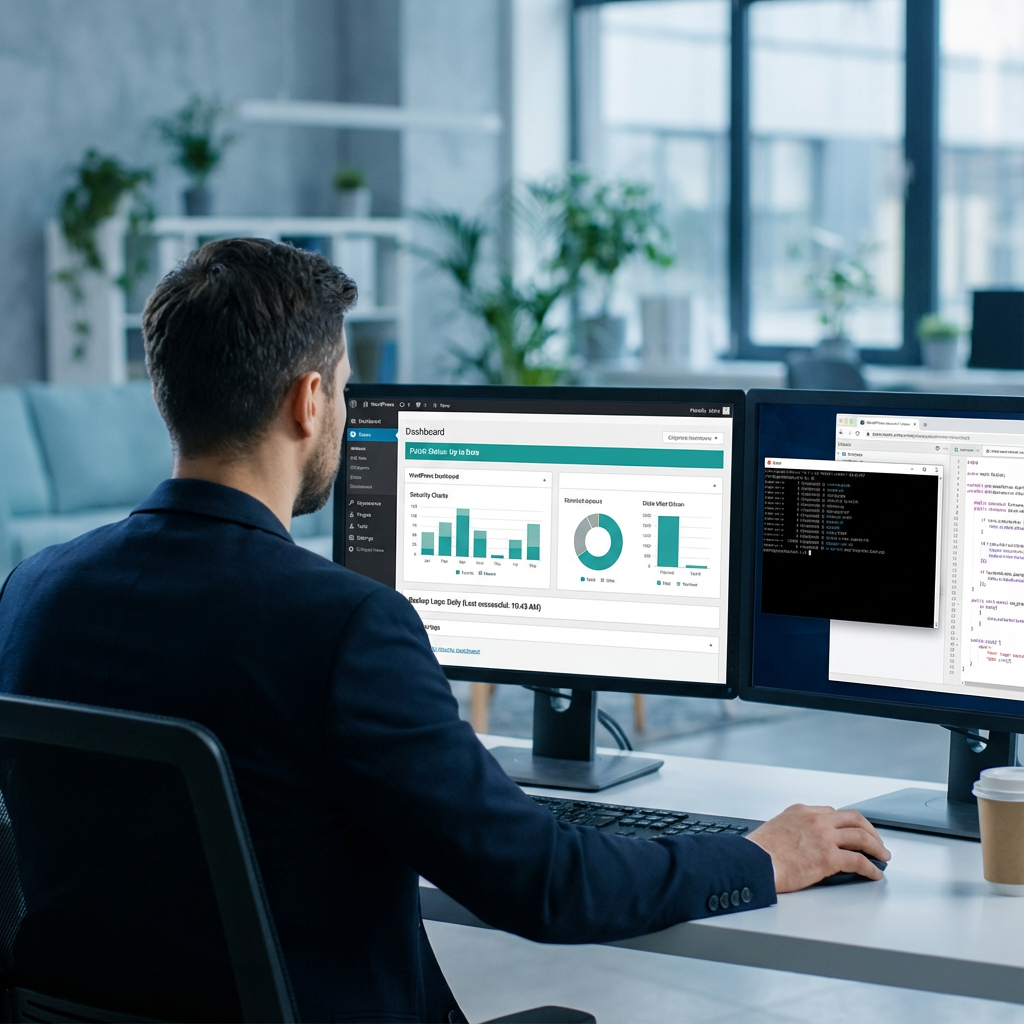
You get three practical benefits from a formal checklist: consistent hardening across sites, faster incident response, and documentation for audits. Here’s the thing, manual one-off fixes don’t scale in regulated environments. A managed checklist aligns technical steps with compliance controls, performance needs, and your hosting provider’s managed services.
Pre-launch hardening (apply before site goes live)
1. Secure hosting and architecture
- Choose secure WordPress hosting with isolation, regular host-level patching, and encrypted storage. Consider a provider that offers HIPAA-compliant managed hosting if you handle protected health information, or SOC 2-ready environments for financial and legal firms. See Secure WordPress Hosting and HIPAA Compliant Managed Cloud Hosting for details.
- Use private networks or VPN access for administrative interfaces, avoid exposing wp-admin to the public internet where possible.
2. Administrative access and accounts
- Enforce least privilege, create separate admin accounts, avoid shared credentials, and use role-based access controls.
- Enable multi-factor authentication for all admin and developer accounts.
3. Baseline hardening
- Disable file editing from the WordPress admin (define 'DISALLOW_FILE_EDIT' in wp-config).
- Change default database prefixes and secure wp-config with strict file permissions.
- Implement strong salts and secret keys, store them outside the webroot when possible.
4. Secure transport and certificates
- Enforce HTTPS sitewide using TLS 1.2+ and HSTS for sites requiring strict security.
- Use automated certificate management to avoid expired certs.
Ongoing maintenance (daily, weekly, monthly tasks)
Daily
- Monitor security alerts and automated scans, respond to critical notifications from the host or security plugin.
- Check site availability and key business transactions.
Weekly
- Apply tested updates for core, themes, and plugins in a staging environment first. Maintain a change log.
- Review user accounts, remove stale or inactive admins.
Monthly
- Perform a plugin audit, remove unused or unsupported plugins and themes.
- Run a vulnerability scan and review WAF logs and firewall events.
Backup and recovery
1. Backup strategy
- Maintain automated, immutable backups with offsite replication and daily snapshots. Ensure backups include database, uploads, and configuration files.
- Keep versioned backups for at least 30 days and retain longer for compliance needs.
2. Recovery testing
- Regularly test restores in a staging environment to verify backup integrity and recovery time objectives.
- Document recovery procedures and contact points for accelerated incident response.
Monitoring, logging, and incident response
- Centralize logs (access, error, authentication) and forward them to a managed SIEM or logging service for retention and correlation.
- Define an incident response playbook with severity levels, roles, and communications steps that align with your compliance requirements.
- Use uptime monitoring and synthetic transaction checks for critical workflows.
Compliance and audit readiness
- Map WordPress controls to your compliance framework, for example, encryption at rest and in transit for HIPAA, or documented change management for SOC 2.
- Keep evidence of patches, access reviews, backups, and monitoring retention policies to streamline audits.
- Leverage a local Arizona-based provider for reduced latency and physical proximity if that supports your regulatory posture.
Performance and hosting considerations
- Prefer managed, secure WordPress hosting that offers caching, CDN integration, and SSD storage to maintain performance without exposing administrative surfaces.
- Consider hybrid or private cloud options for additional isolation, or colocation for full physical control. Learn more about Private Cloud Hosting, Colocation, and Managed Virtual Desktops if you need integrated solutions across infrastructure and endpoints.
Tools and plugins to include (recommended)
- Managed Web Application Firewall (WAF)
- Endpoint scanning and malware removal service
- Role-based access control plugin with MFA
- Managed backups with immutable retention
- Centralized logging and alerting integrations
Frequently asked questions
How often should I update WordPress core and plugins?
Update core immediately for critical security releases, otherwise patch regularly after testing in staging. A practical cadence is weekly checks with monthly scheduled maintenance windows.
Can I meet HIPAA or SOC 2 requirements with WordPress?
Yes, with a compliant hosting environment, strict access controls, encrypted storage and transport, logging, and proper administrative safeguards. Consider Armour Cloud’s HIPAA Compliant Managed Cloud Hosting for end-to-end managed compliance.
What if a plugin becomes vulnerable and has no patch?
Remove or replace the plugin immediately. If removal risks breaking functionality, isolate the feature and engage a developer to patch or mitigate until a secure replacement is available.
How do backups fit into compliance?
Backups provide data durability and recovery evidence. For compliance, ensure encryption, access controls, and documented retention and restore testing.
Is a web application firewall necessary?
For regulated and high-traffic sites, yes. A WAF blocks common exploit attempts and reduces risk while you apply patches and updates.
Should I use a CDN with secure WordPress hosting?
Yes, a CDN improves performance and can add an additional layer of DDoS mitigation. Confirm CDN routing and logging meet your compliance requirements.
Get Secure, Compliant WordPress Hosting
When you need hands-on help implementing this checklist, Armour Cloud offers Arizona-based secure WordPress hosting with managed patching, backups, and 24/7 support. Call (602) 529-3435 for secure hosting or compliance support, or request a consultation at https://armourcloud.io/contact/.
Summary
This managed WordPress security checklist covers pre-launch hardening, ongoing maintenance, backups, monitoring, and compliance. Implement these steps with a managed provider to simplify audits, reduce risk, and keep performance high.
Conclusion
Securing WordPress in regulated environments is about repeatable processes, managed infrastructure, and clear documentation. Use this checklist as a baseline, adapt controls to your risk profile, and partner with a local provider that understands compliance and uptime expectations. That approach keeps your sites safer and your auditors satisfied.
About Armour Cloud
Armour Cloud is a Phoenix-based provider of secure, compliant cloud hosting and managed IT solutions for regulated industries. Armour Cloud delivers high-performance infrastructure built on Arizona data centers, offering low-latency, HIPAA-compliant hosting with 24/7 support.
We specialize in helping healthcare, finance, and legal organizations protect sensitive data, meet compliance requirements, and modernize their IT with scalable, managed cloud environments.
Our Top Services:
- Colocation
- Managed Desktop-as-a-Service (VDI)
- Managed Microsoft 365 Services
- Email Security & Encryption
- Secure WordPress Hosting
- Private Cloud Hosting
- HIPAA Compliant Cloud Solutions
Ready to Secure Your Cloud?
📞 Call (602) 529-3435 or Contact Armour Cloud to get started with a free consultation.